 COME
COMEWhat to Check After a COME Update Completes
After Android accepts a COME update, open the app and inspect the task you expected the update to affect. Installation completion and a usable account session are separate checks.
Confirm the installed state
Launch the app from Android’s app list and read its version information if available. Match that information to the update you intended to install. A browser download entry alone cannot confirm that Android accepted the replacement.
Review relevant controls
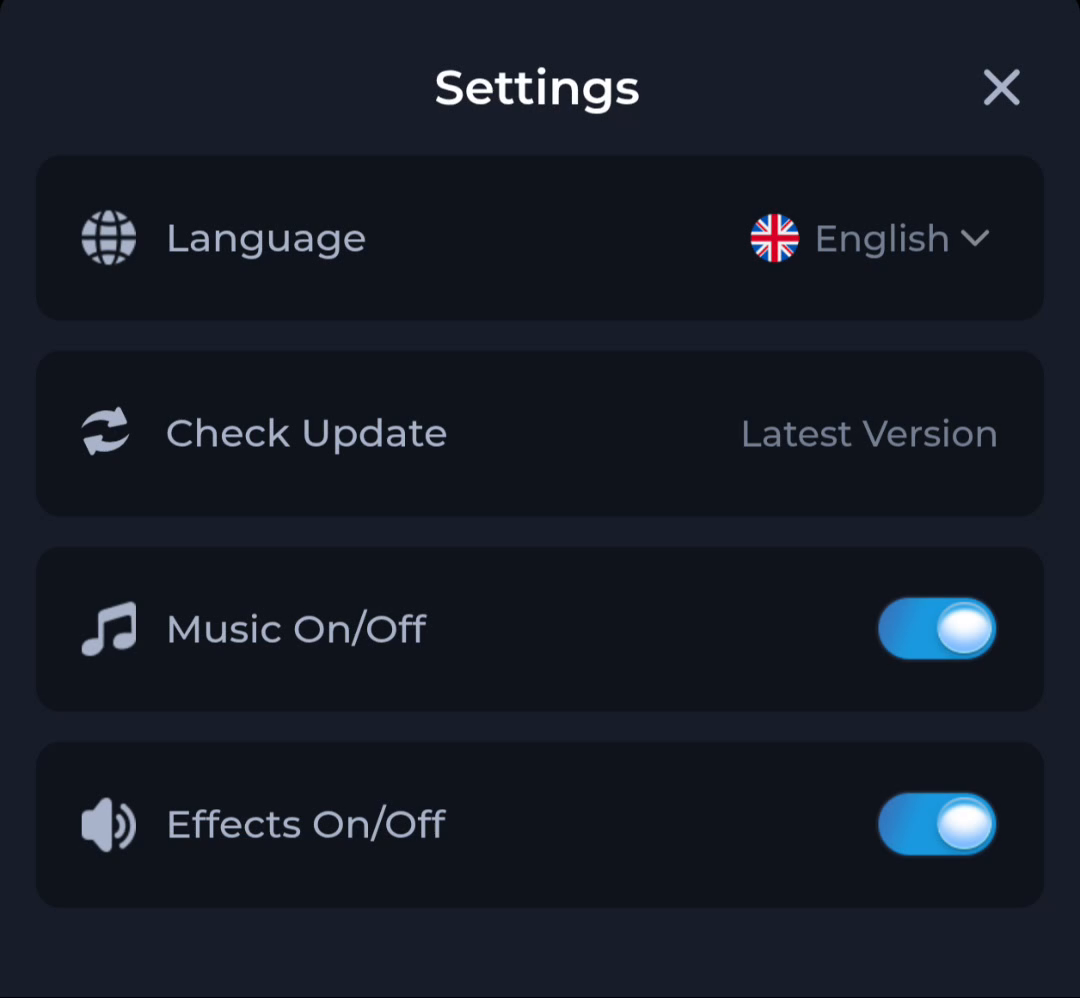
The Settings screen groups Language, Check Update, Music and Effects. If a display or sound preference changed, inspect the corresponding control before assuming the package failed. A layout change can be different from a functional problem.
Check access without unnecessary resets
Confirm that the expected account route remains available. If a problem persists, record the updated version, screen and exact behaviour. Avoid logging out, clearing data or repeating installation while you are still gathering the basic state.
A useful next step
Return to the download guide for package questions, or use the app’s matching help topic if installation succeeded and a later task remains.